Why Your GBP Appeal Was Denied and What to Do Next
Why Your GBP Appeal Was Denied and What to Do Next
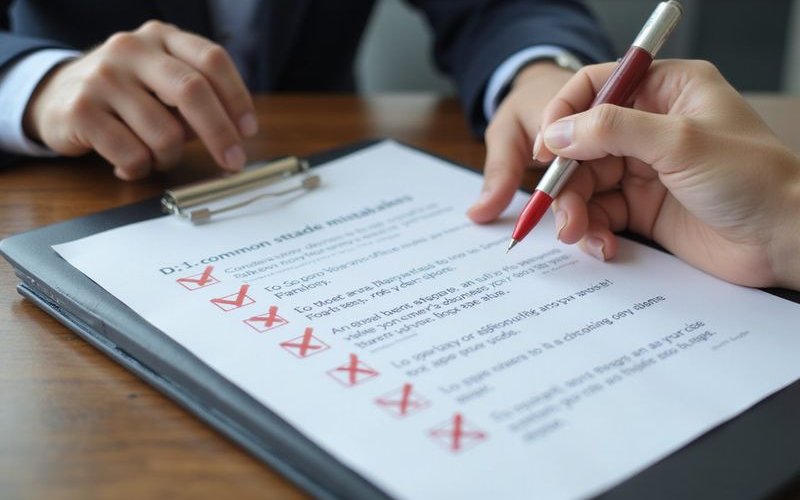
Getting your GBP appeal denied is frustrating, especially when Google’s response doesn’t explain why. A vague “policy violation” email helps no one and often leaves business owners feeling helpless. We have seen hundreds of these cases, and the reality is that most denials happen for the same few preventable reasons. Let’s examine the common reasons for denials and what you can do differently.
Why Appeals Get Rejected
1. Root Cause Not Fixed (The “Deceptive Content” Trap)
The #1 reason for appeal denials: you appealed without fixing the actual problem. Google’s automated system checks if the violation still exists before a human ever looks at your case.
Our team frequently sees businesses flagged for “Deceptive Content” simply because their profile name doesn’t match their legal paperwork. If your business name included keywords like “Best Plumber in Dallas” and you just removed them from GBP but not from your website footer or signage, the discrepancy triggers a flag. You must scour your digital footprint to ensure your Name, Address, and Phone number (NAP) are identical everywhere.
2. Insufficient or Mismatched Documentation
Google needs proof, not just promises. Weak appeals often fail because the documents provided are either outdated or inconsistent.
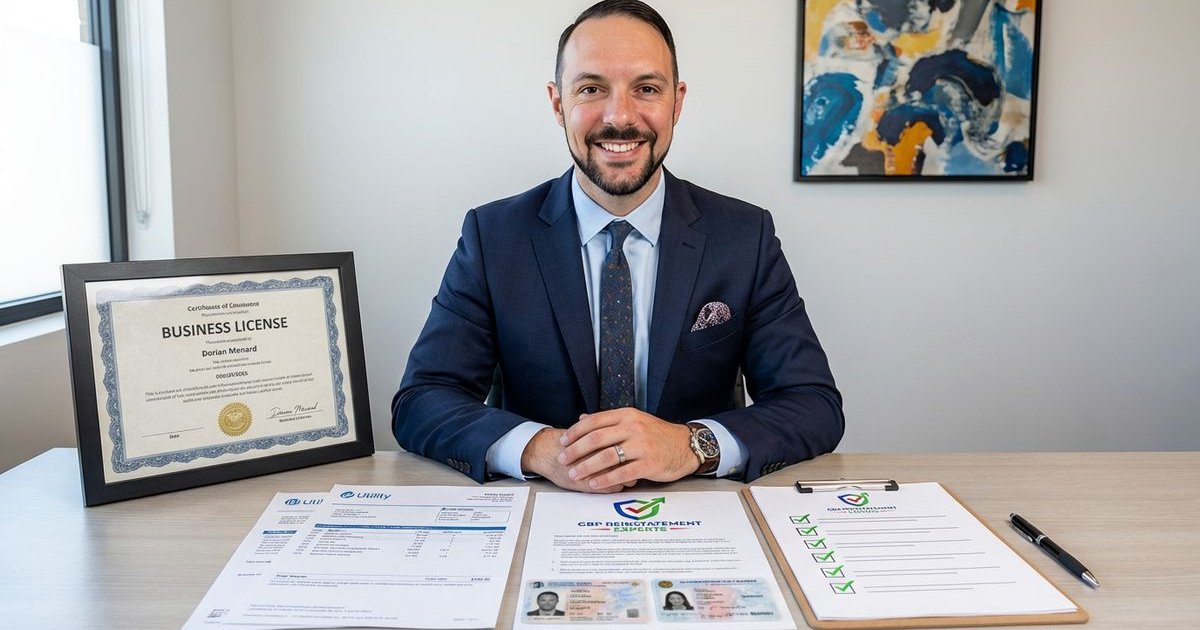
We recommend submitting official federal or state documents rather than just a business card. Your evidence needs to be irrefutable:
- Business Registration: A current Secretary of State filing or Business License.
- Tax Documents: An IRS CP 575 form or official EIN letter.
- Utility Bills: A gas, electric, water, or internet bill dated within the last 90 days.
- The Golden Rule: The address on your utility bill must match your GBP address character for character.
3. The 60-Minute Evidence Window
Many applicants don’t realize that the Google Business Profile Appeals Tool has a strict timeout feature. Once you start the appeal process, you typically have only 60 minutes to upload your supporting evidence zip file.
If you start the form and then scramble to find your files, the session may time out, submitting your appeal without the crucial proof attached. This leads to an instant, automated rejection because the system sees an empty claim.
4. Generic Appeal Language
Copy-paste appeals that don’t address your specific situation signal that you haven’t identified or fixed the problem. Writing “I didn’t do anything wrong” is rarely effective.
We advise being specific and owning the fix. Instead of being defensive, state clearly: “We identified that our business hours were listed as 24/7 erroneously. We have corrected them to 9-5 to match our signage.”
5. Multiple Rapid Submissions
Submitting appeal after appeal without changes can flag your account for suspicious behavior and lead to automatic rejections. It resets your position in the queue, pushing your resolution date further back.
6. Wrong Appeal Channel
Using the wrong form or channel for your suspension type can result in automatic rejection. You must use the designated Google Business Profile Appeals Tool for your specific account. Old email support forms often lead to dead ends.
What to Do After Denial
Step 1: Don’t Panic and Resubmit Immediately
Take time to analyze what went wrong. A knee-jerk resubmission often results in a permanent ban.
Our data suggests that most successful reinstatements take anywhere from 3 days to 3 weeks depending on the complexity. Patience is a tactical advantage here.
Step 2: Analyze the Rejection in the Tool
Look for clues in the specific wording used in the Appeals Tool status. It will often list a broad category like “Quality issues” or “Coordinated inauthentic behavior.”
This status message gives you the thread you need to pull. If it mentions “Integrity,” check your reviews for spam. If it mentions “Content,” check your photos and business description for prohibited terms.
Step 3: Fix Everything Completely
Address all potential issues, not just obvious ones. You need to conduct a forensic audit of your profile:
- Profile Data Accuracy: Does your name match your signage exactly?
- Website Consistency: Is your address listed in the footer of your website?
- Citation Alignment: Do directories like Yelp and Yellow Pages match your Google profile?
- Documentation Quality: Are your scanned PDFs high-resolution and legible?
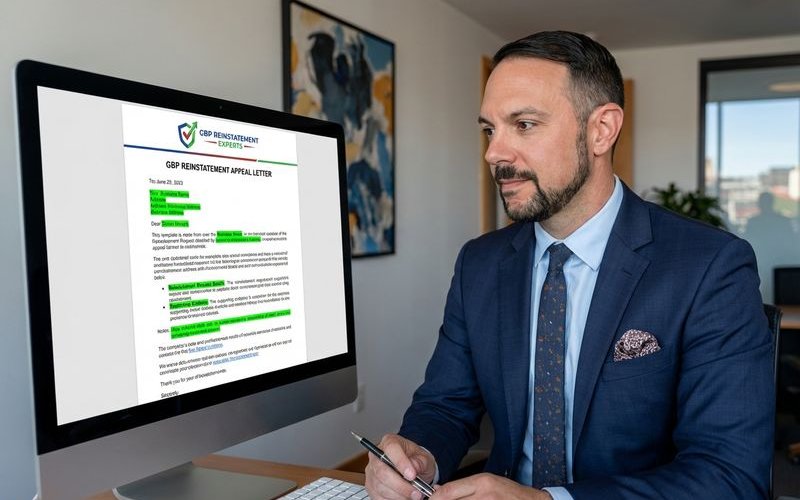
Step 4: Prepare a Better Appeal Package
Your next appeal should be a complete dossier. We build a “Reinstatement Folder” on our desktop before we ever open the tool.
This folder should contain:
- The Narrative: A text file with your explanation acknowledging the error and the fix.
- The Proof: Your business license and utility bill saved as clear PDFs.
- Visuals: Photos of your permanent signage and office interior (if applicable).
- Video Verification Prep: Be ready to record a continuous 1-2 minute video starting from the street sign, unlocking your door, and showing your tools.
Step 5: Submit Through Proper Channels
Ensure you’re using the correct appeal process for your suspension type. Log into the Appeals Tool, select the suspended profile, and attach your pre-prepared zip file immediately.
When to Escalate
After 2-3 well-prepared appeals fail, consider manual escalation pathways. The “Additional Review” button may become available in the tool, or you might need to seek help from a Product Expert.
We often turn to the Google Business Profile Help Community forums when the automated tool hits a wall. A Product Expert can sometimes escalate a stuck case to the internal Google team if you have a rock-solid case and clear evidence.
Continued failed appeals can sometimes make recovery harder, so strategy matters. If you are stuck in a loop, pause and re-evaluate your evidence before trying again.
Prevention for Next Time
After successful reinstatement, your profile is often on “probation” in the algorithm’s eyes. You must tread carefully to avoid triggering a new suspension.
- Document what went wrong: Keep a log of the changes you made.
- Implement compliance processes: Don’t let junior staff make major edits to the profile.
- Monitor for issues proactively: Check your profile weekly for unauthorized user suggestions.
- Keep backup documentation ready: Always have your current utility bill and license scanned and ready.
Video Verification Warning: Google is increasingly moving toward video verification for reinstated profiles in 2026. If you are a Service Area Business (SAB), ensure your vehicle is branded and you have the tools of your trade ready to film at a moment’s notice.
GBP Reinstatement Experts
Our team of GBP reinstatement experts has helped over 12,500 businesses recover their suspended Google Business Profiles.
Learn more about our team →