Google Business Profile Video Verification: Complete Guide
Google’s push for video verification isn’t just a trend. It has become the primary gatekeeper for new listings in the US market as of 2026.
We have handled hundreds of these verification requests for clients across the country.
The shift from postcards to video often catches business owners off guard.
We know how frustrating it is to prepare for a simple code only to face a camera requirement instead.
This method allows Google to verify physical location and business legitimacy in real-time.
We have found that getting it right on the first try is critical.
A failed video often triggers a manual review process that can drag on for weeks.
Let’s look at the exact criteria for approval and the specific recording techniques that ensure a pass.
When Video Verification Is Required
You might encounter this requirement even if you already have a verified profile.
We see this trigger most often during three specific scenarios.
High-risk categories like locksmiths, garage door repair, and plumbing services face this scrutiny almost 100% of the time now.
We also notice it happens immediately after significant profile edits.
Changing your primary category, phone number, or address can flag the system’s fraud detection algorithms.
We advise clients to prepare for this if they are reactivating a suspended profile.
Google uses this step to ensure the business still exists at the stated location.
The Trigger Factors
- New Listings: Creating a fresh profile in a competitive geographic area.
- Suspension Recovery: Proving legitimacy after a hard suspension.
- Information Inconsistencies: Data on your profile conflicts with Secretary of State filings or other directories.
- Category Sensitivity: Industries prone to spam (like HVAC or legal services) trigger strict protocols.
What Google Wants to See
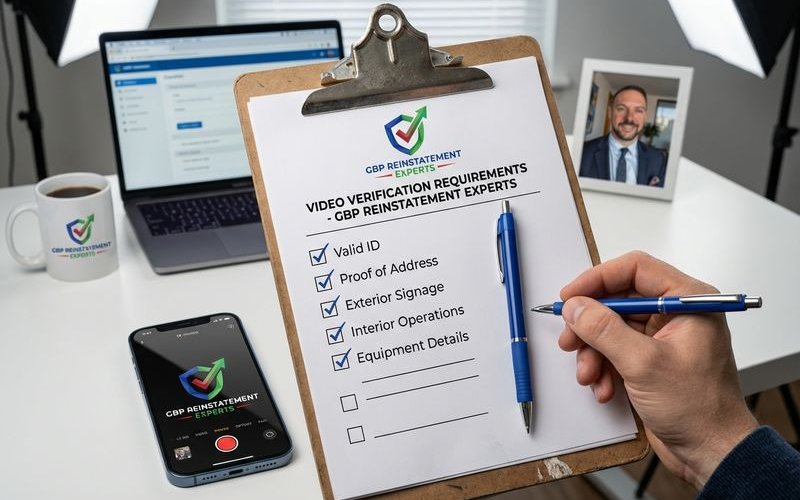
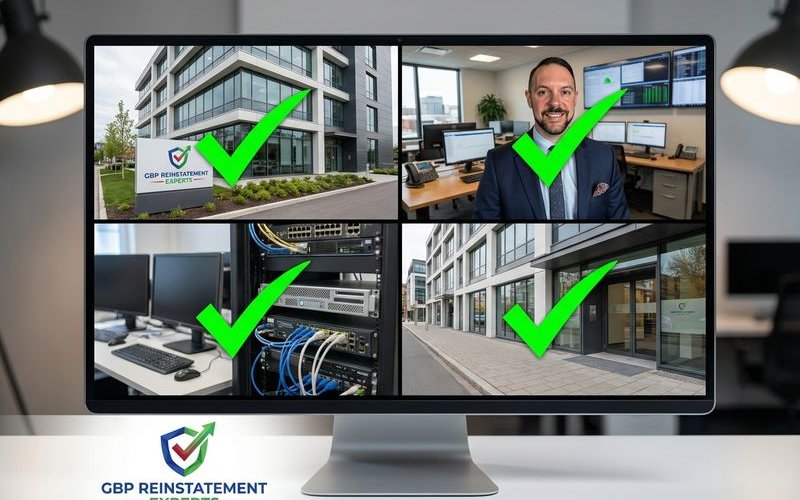
The reviewer is looking for three specific “proof points” in a single continuous take.
We call this the “Street-to-Seat” method.
The goal is to create an unbroken chain of evidence linking the public street to your private workspace.
Exterior Footage
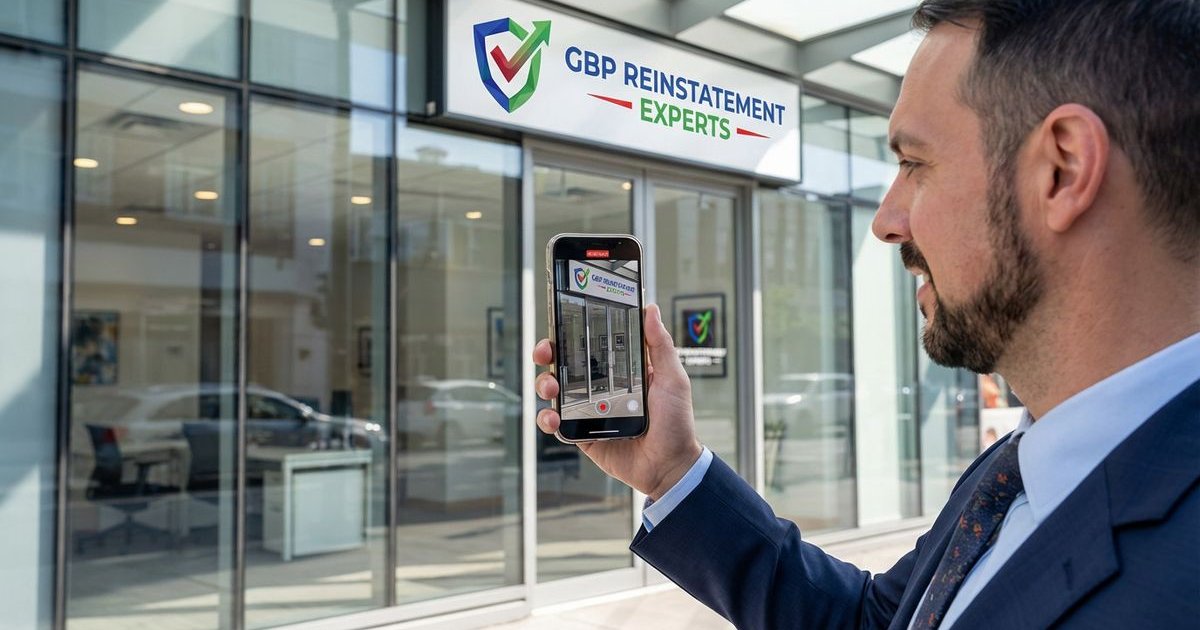
We always start the recording across the street from the location.
This establishes context for the Google support team member reviewing the file.
Your video must clearly capture:
- Street Names: The intersection or street sign nearest your building.
- Building Numbers: The specific address number on the door or mailbox.
- Permanent Signage: Branded signs permanently affixed to the building (banners often get rejected).
- Neighboring Businesses: Context clues that match the current Google Street View data.
Interior Footage
We instruct our clients to walk into the building while the camera is rolling.
The act of unlocking the door is a powerful trust signal.
Show the key entering the lock and the door opening.
We have seen videos rejected simply because the person walked through an already open door.
Once inside, focus on:
- Professional Tools: A dentist needs a chair; a mechanic needs a lift.
- Branded Interior: A reception desk or wall logo.
- Staff Activity: Employees working (if applicable).
- Restricted Areas: Proof of access to “employee only” zones.
Documentation
We recommend having your paperwork laid out on a desk before you hit record.
Fumbling for documents burns valuable video time.
Zoom in closely on these items so the text is legible.
- Official Registration: A Secretary of State filing or Articles of Incorporation.
- Tax Documents: An IRS CP 575 form or recent tax return header.
- Utility Bills: A recent electric or water bill matching the business address (not a P.O. Box).
- Software Access: A computer screen logged into your CRM or POS system.
Video Requirements
Technique matters as much as content here.
We see many valid businesses fail because of shaky hands or poor file management.
The upload system is notoriously sensitive to large files and weak connections.
Technical Specs
- Resolution: Stick to 1080p or 720p. 4K video files are often too large and cause upload timeouts.
- File Size: Keep the file under 75 MB if possible to ensure a smooth transfer over cellular data.
- Duration: Aim for 1 to 2 minutes. Google allows up to 5, but shorter videos upload more reliably.
- Orientation: Vertical (Portrait) is standard for mobile uploads, but Landscape works if you need a wider field of view.
Content Requirements
- One Take Rule: Absolutely no editing, stitching, or cuts.
- Audio: Narrate as you go. Silence is suspicious.
- Stability: Move slowly. Fast pans verify nothing and cause motion blur.
- Location Services: You must have location services enabled for your camera and browser app before starting.
Step-by-Step Process
We have refined this workflow to minimize errors.
Following a script prevents the panic that leads to missed details.
Preparation
- Enable GPS: Turn on high-accuracy location settings on your smartphone.
- Stage the Room: Place your business license and utility bill on a well-lit desk.
- Unlock the Door: Leave the door locked so you can demonstrate entry, but ensure the key works smoothly.
- Check Connectivity: Disconnect from Wi-Fi if the signal is weak outside; 5G data is often more stable for the upload.
- Clean Up: Remove clutter that might obscure professional equipment.
Recording Sequence
- Start at the Curb: Film the street sign and pan to your building.
- Approach the Entrance: Keep the camera steady on the building number.
- The “Key Shot”: Film your hand unlocking and opening the door.
- Enter the Space: Walk through the customer area into the operational area.
- Show the Tools: Focus on inventory, machinery, or computers.
- The Paperwork Close: End the video by focusing on the documents on your desk.
Narration Tips
We coach clients to speak to the reviewer like a human being.
Simple, direct statements work best.
- “This is [Business Name] located at [Address].”
- “I am now unlocking the main entrance.”
- “Here is our inventory storage.”
- “This is our official business license showing the matching address.”
Comparison: Storefront vs. Service Area
We handle different requirements depending on your business model.
A plumber works differently than a retail store, and Google acknowledges this.
| Requirement | Storefront Business | Service Area Business (SAB) |
|---|---|---|
| Starting Point | Street view showing permanent signage | Street view showing house number |
| Key Evidence | Unlocking the front door | Branded vehicle or truck |
| Workspace | Retail area or office | Home office or storage garage |
| Tools | Point of Sale (POS) system | Ladders, parts, specialized tools |
Service Area Business Video Tips
We see the highest failure rates with home-based Service Area Businesses (SABs).
The lack of a storefront confuses the standard process.
You must prove you operate a business, not just that you live in a house.
The Branded Vehicle
This is your strongest asset.
We advise starting the video by showing your license plate and the branding on your work truck.
Open the back of the truck to show your equipment.
The Home Office Setup
Walk into your home and go directly to your workspace.
Show your computer with business software open.
Display business cards, branded apparel, or invoices with your business name and address.
Common Failure Reasons
Understanding why others fail helps you pass.
We audit rejected videos frequently to find the patterns.
Technical Failures
- Upload Timeout: The video file was too large (over 100MB) or the data connection dropped.
- No Location Data: The phone’s GPS was off, so Google couldn’t geotag the video.
- Blurry Documents: The camera didn’t focus on the text of the utility bill.
Content Failures
- No Unlocking: The video started inside the room, missing the entry proof.
- Lack of Equipment: A “marketing agency” showing only a blank laptop looks suspicious.
- Inconsistent Signage: The name on the door didn’t match the Google Business Profile name exactly.
Suspicious Indicators
- Empty Rooms: A freshly painted office with no furniture raises red flags.
- Temporary Signs: A piece of paper taped to a door is not accepted as permanent signage.
- Silent Video: Lack of narration prevents you from explaining discrepancies.
If Video Verification Fails
Don’t panic if the first attempt is rejected.
We suggest a systematic approach to fixing the issue.
First, check if the “Upload Video” button is still available.
If it is, review the technical specs and try a shorter, lower-resolution recording.
The Verification Loop
Sometimes the button disappears entirely.
We call this the “Grey Limbo.”
If you have failed multiple times, the system may lock you out of video options.
At this stage, you must pursue manual escalation to reach Google Business Profile support for manual verification.
This usually involves a live video call with a support agent.
When to Seek Help
Professional assistance becomes necessary when technical glitches prevent upload.
We also recommend expert help if your business structure is complex (like a co-working space or virtual office).
Getting verified is the foundation of your local SEO strategy.
Take the time to plan your video, check your lighting, and verify your location settings.
A solid preparation phase prevents weeks of downtime. If you’re stuck in a verification loop, our free audit can identify what’s blocking your progress.
GBP Reinstatement Experts
Our team of GBP reinstatement experts has helped over 12,500 businesses recover their suspended Google Business Profiles.
Learn more about our team →